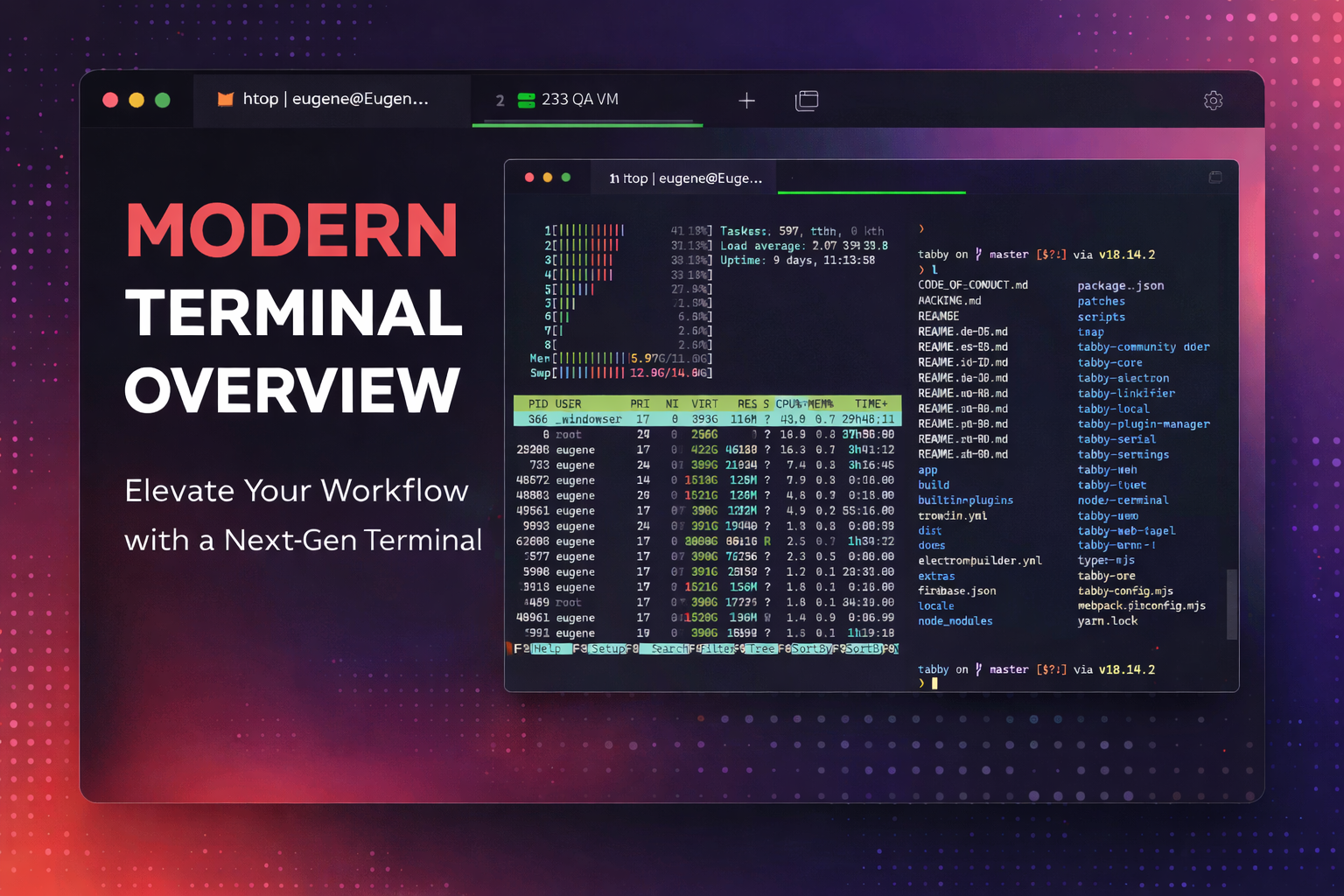

If you’re anything like me, you’ve probably spent way too much time trying to find a terminal emulator that doesn’t feel like it was designed in the 90s. I’ve bounced between iTerm2, PuTTY, the standard Windows terminal, and probably a dozen others. Then I stumbled across Tabby, and honestly, it’s been a bit of a game-changer.
What Exactly Is Tabby?
Tabby (which used to be called Terminus, in case you see that name floating around) is a cross-platform terminal emulator that works on Windows, macOS, and Linux. But calling it just a “terminal emulator” doesn’t really do it justice. It’s more like a complete terminal environment that brings together SSH, serial connections, and local shell access all in one place.
The project is open source and has a pretty active community behind it—over 67,000 stars on GitHub, which is pretty impressive for a terminal app. It’s built on Electron, so yeah, it’s not the lightest thing on your system, but what you get in return makes up for it.
The Features That Actually Matter
SSH and Connection Management
This is where Tabby really shines for me. Instead of juggling different SSH clients or trying to remember which config file I put that server connection in, everything’s built right into Tabby. You can save your SSH connections, organize them into groups, and even set up jump hosts automatically.
The SSH implementation supports all the stuff you’d expect—X11 forwarding, port forwarding, agent forwarding (including Pageant on Windows). You can even write login scripts if you need to automate some initial commands when you connect.
Split Panes and Tab Management
Split panes aren’t exactly revolutionary, but Tabby handles them really well. You can nest splits however you want, and it remembers your tab setup between sessions. There’s even a “quake console” mode that drops down from the top of your screen with a hotkey, which is great if you’re constantly jumping in and out of the terminal.
Serial Terminal Support
Okay, this one’s a bit niche, but if you ever work with embedded systems or network equipment, having a built-in serial terminal is incredibly handy. It saves connections, has hex mode for debugging, and handles all the weird newline conversion stuff that makes serial communication such a pain.
Themes and Customization
Tabby comes with a bunch of color schemes out of the box, and there’s a whole plugin ecosystem if you want more. The UI is actually customizable too—you can put tabs on any side of the window, adjust fonts, set up custom keyboard shortcuts, and tweak pretty much everything.
The Plugin Ecosystem
Speaking of plugins, there’s a surprisingly active community building stuff for Tabby. There are plugins for Docker container connections, workspace management, SFTP tabs, and even one that integrates with AI assistants through something called Model Context Protocol.
You can install plugins right from the settings menu, which is way easier than hunting down random GitHub repos and manually installing things.
What It’s Not
I should be clear about what Tabby isn’t. It’s not a shell replacement—it’s not trying to be zsh or PowerShell or anything like that. It’s also not going to win any awards for being lightweight. If you’re on an older machine or RAM is tight, you might want to look at Alacritty or ConEmu instead.
Tabby is basically an alternative to apps like iTerm2, the Windows Terminal, or PuTTY. It’s for people who want a full-featured terminal environment with lots of bells and whistles.
Cross-Platform Consistency
One thing I really appreciate is that Tabby works basically the same way across different operating systems. I switch between Windows and macOS pretty regularly, and it’s nice to have the same terminal experience on both. Your settings, themes, and saved connections all sync up if you want them to.
Installation
Getting Tabby installed is straightforward. They have installers for all major platforms, and there are also repositories for Debian/Ubuntu and RPM-based Linux distros if you prefer package managers. There’s even a portable version for Windows if you want to run it from a USB drive.
The project also offers nightly builds if you like living on the edge, though the stable releases have been solid in my experience.
Should You Try It?
If you spend a lot of time in the terminal and you’re looking for something more polished than the default options, Tabby is definitely worth checking out. It’s particularly great if you’re managing multiple SSH connections or need serial terminal access.
The learning curve isn’t steep—if you’ve used any modern terminal before, you’ll feel right at home. And because it’s open source, you can actually dig into the code if something bothers you (or better yet, fix it and contribute back).
The Bottom Line
Tabby might not be for everyone. If you’re a minimalist who just needs basic terminal functionality, it’s probably overkill. But if you want a modern, feature-rich terminal that consolidates SSH, serial, and local shells into one polished package, it’s hard to beat.
I’ve been using it as my daily driver for a few months now, and I haven’t felt the need to look elsewhere. The fact that it’s actively maintained and has a growing community behind it gives me confidence that it’ll keep getting better too.
You can grab it from tabby.sh or check out the code on GitHub. Give it a shot—worst case, you uninstall it. Best case, you finally find a terminal you actually like using.
Leave a Comment