
A complete guide to running Gluetun, Prowlarr, qBittorrent, Radarr, Sonarr & Jellyseerr in a single stack
If you want a fully automated, privacy-friendly, hands-off media workflow, a modern Docker stack can handle everything for you – searching, downloading, organizing, and even request management. In this post, I’ll walk through the architecture I’m using: a tightly integrated group of containers running behind a secure VPN layer with Gluetun, plus Prowlarr (Jackett + FlareSolverr replacement) alongside qBittorrent, Radarr, Sonarr, and Jellyseerr.
Why This Stack?
✔ Traffic privacy with Gluetun
Gluetun acts as a VPN gateway that other containers route their traffic through. Any container using network_mode: service:gluetun gets its outbound traffic forced through the VPN tunnel.
This means:
- No leaks
- No need for special firewall rules
- qBittorrent and Prowlarr are always protected
- You control everything from one place
✔ Reliable indexers with Prowlarr
Prowlarr bundles modern Cloudflare bypass, built-in indexer testing, and Sonarr/Radarr sync, so you don’t need the old Jackett + FlareSolverr combo. Use it as the single indexer hub feeding both apps.
✔ Complete media automation
Together, Radarr and Sonarr automatically:
- Search for releases
- Send them to qBittorrent
- Watch for finished downloads
- Move & rename content
- Keep your library clean
Jellyseerr adds a user-friendly, Netflix-like interface for making requests and having Radarr/Sonarr handle everything behind the scenes.
✔ Fully Dockerized = Easy to manage
Everything runs in isolated containers with persistent volumes. You can tear the stack down, rebuild it, or migrate to new hardware without reconfiguring each app.
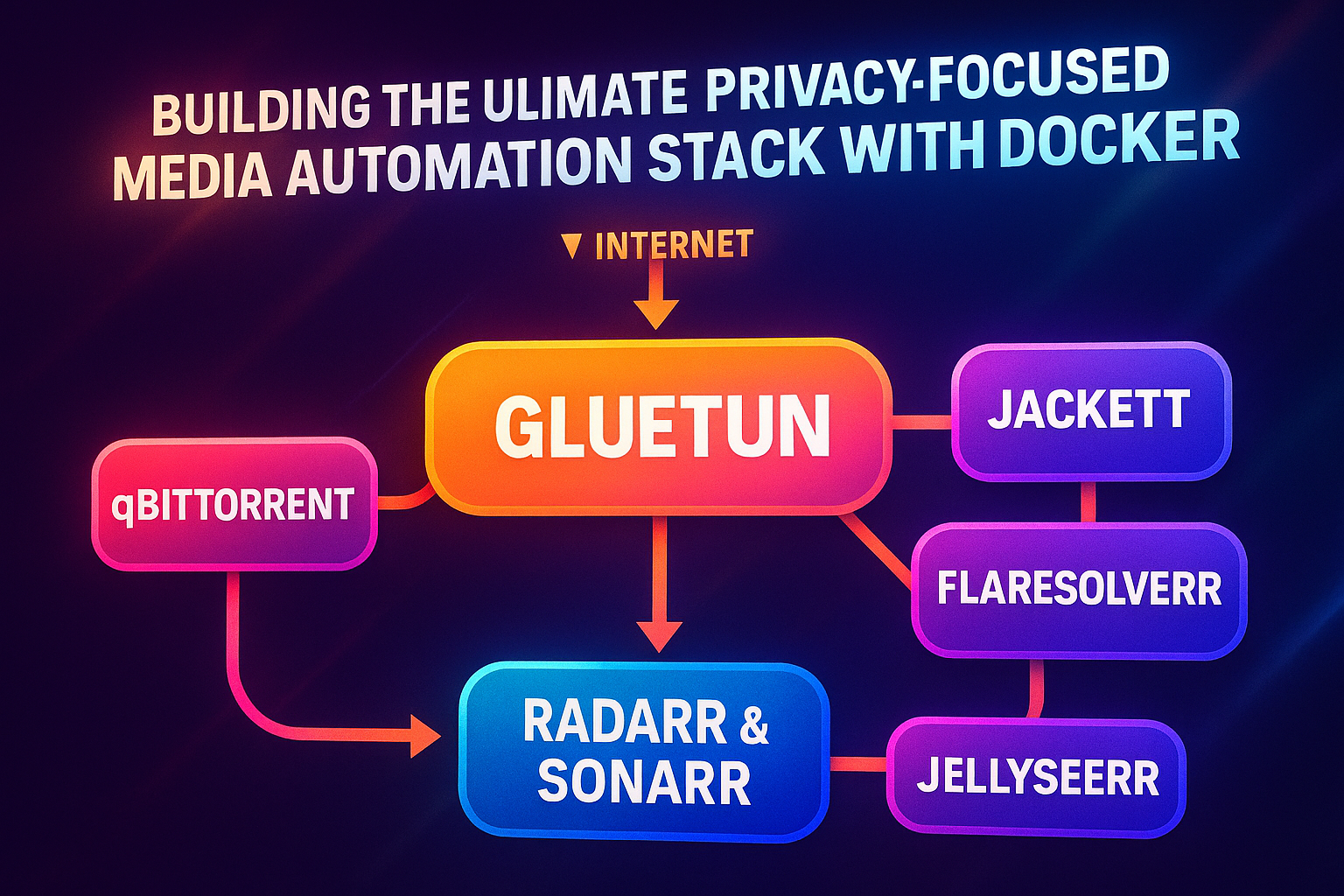
How the Stack Works (Architecture Overview)
Here’s how all the pieces connect:
Gluetun – Acts as the central gateway. qBittorrent (and optionally Prowlarr) use network_mode: service:gluetun which forces all traffic through the VPN container.
Prowlarr – Indexer aggregator with built-in Cloudflare bypass that syncs to Radarr and Sonarr. It replaces both Jackett and FlareSolverr.
qBittorrent – Handles all downloads, but only behind Gluetun for privacy.
Radarr & Sonarr – Automation brains for movies and TV.
Jellyseerr – Request management — users can ask for a movie/series, Jellyseerr sends the request to Radarr/Sonarr, and everything happens automatically.
Traffic Flow:
Internet
    ↓
Gluetun (VPN Tunnel)
    ↓
    ├── qBittorrent
    └── Prowlarr (via Gluetun)

Prowlarr > Radarr & Sonarr ← Jellyseerr
My Docker Stack (Compose)
Here’s the complete docker-compose.yml configuration:
version: '3.8'

services:
  gluetun:
    image: qmcgaw/gluetun:latest
    container_name: gluetun
    restart: unless-stopped
    ports:
      - "8080:8080" # qBittorrent Web UI
      # If you run Prowlarr through Gluetun, also expose 9696:9696 here.
    environment:
      - VPN_SERVICE_PROVIDER=private internet access
      - VPN_TYPE=openvpn
      - OPENVPN_USER=p3156598
      - OPENVPN_PASSWORD=EjHfWgb9uC
      - SERVER_REGIONS=CA Toronto
      - PORT_FORWARDING=on
      - FIREWALL_INPUT_PORTS=8080
      - FIREWALL_VPN_INPUT_PORTS=8080
      - TZ=America/Chicago
      #- DOT=off
      #- DNS_ADDRESS=9.9.9.9,149.112.112.112
    cap_add:
      - NET_ADMIN
    devices:
      - /dev/net/tun:/dev/net/tun

  qbittorrent:
    image: lscr.io/linuxserver/qbittorrent:latest
    container_name: qbittorrent
    restart: unless-stopped
    # Route this container through the Gluetun network
    network_mode: service:gluetun
    environment:
      - PUID=1000 # Replace with your user ID
      - PGID=1000 # Replace with your group ID
      - TZ=America/Chicago
      - WEBUI_PORT=8080
    volumes:
      - /home/allie/.config/qbittorrent/config:/config
      - /mnt/cent/data2tb/download:/downloads

  radarr:
    image: lscr.io/linuxserver/radarr:latest
    container_name: radarr
    restart: unless-stopped
    # Radarr uses your normal internet connection
    ports:
      - "7878:7878" # Expose Radarr web UI
    environment:
      - PUID=1000
      - PGID=1000
      - TZ=America/Chicago
    volumes:
      - /home/allie/.config/radarr/data:/config
      - /mnt/cent/data3tb/movies:/movies
      - /mnt/cent/data2tb/download:/downloads # Same downloads folder as qBittorrent

  sonarr:
    image: lscr.io/linuxserver/sonarr:latest
    container_name: sonarr
    environment:
      - PUID=1000
      - PGID=1000
      - TZ=America/Chicago
    volumes:
      - /home/allie/.config/sonarr/data:/config
      - /mnt/cent/data2tb/tv:/tv #optional
      - /mnt/cent/data2tb/download:/downloads #optional
    ports:
      - 8989:8989
    restart: unless-stopped

  prowlarr:
    image: lscr.io/linuxserver/prowlarr:latest
    container_name: prowlarr
    # network_mode: service:gluetun # uncomment to tunnel Prowlarr too, then expose 9696 via gluetun
    environment:
      - PUID=1000
      - PGID=1000
      - TZ=America/Chicago
    volumes:
      - /home/allie/.config/prowlarr/data:/config
    ports:
      - 9696:9696
restart: unless-stoppedUse your own paths for volumes, of course.
Key Tips for a Smooth Setup
1. Make sure downloads are shared consistently
Everything needs the same /downloads path so Radarr/Sonarr can see what qBittorrent downloaded.
2. Add Sonarr and Radarr to Prowlarr
Here’s the quick wiring process:
- Open Prowlarr at
http://<your-host>:9696and grab your API key (Settings → General). You’ll use this everywhere. - Add your download client (Settings → Download Clients → Add → qBittorrent). Host:
host.docker.internal(or172.17.0.1) on port8080. Username/password = what you set in qBittorrent. Hit “Test” then “Save”. - Add Radarr (Settings → Apps → Add → Radarr). URL:
http://radarr:7878if they share a Docker network, otherwisehttp://host.docker.internal:7878. API key comes from Radarr (Settings → General). Pick a sync profile (usually “Full Sync”) and “Add & Test”. - Add Sonarr the same way: URL
http://sonarr:8989(orhttp://host.docker.internal:8989), paste the Sonarr API key, choose the sync profile, then save. - Add indexers in Prowlarr (Indexers → Add). Turn on “Add to Apps” so Radarr/Sonarr inherit the indexer automatically. For Cloudflare-heavy sites, enable Prowlarr’s built-in Cloudflare bypass where available; you no longer need FlareSolverr.
- Verify search from Prowlarr (left sidebar → Search) and confirm that results appear in Radarr/Sonarr and push to qBittorrent.
3. Expose only what needs to be exposed
Only apps with a web UI should have ports published. Containers behind Gluetun do not open ports themselves.
4. Let Jellyseerr automate requests
Once configured, you barely touch the system. Users request → Jellyseerr → Radarr/Sonarr → qBittorrent → Organized.
5. qBittorrent: ports, auth, and categories
Inside the Web UI, set the Web UI port to match Gluetun’s exposed 8080. Turn on Web UI authentication; use a strong username/password and switch the default “admin/adminadmin”. Create categories (e.g., movies, tv) and map them to specific folders under /downloads so Radarr/Sonarr can grab completed files without guessing paths.
6. Radarr/Sonarr: root folders & completed download handling
In each app, add a root folder that matches the mounted paths (/movies for Radarr, /tv for Sonarr). Under Settings → Download Clients, point to qBittorrent, tick “Completed Download Handling,” and set the category to match what you created (movies or tv). This keeps imports clean and prevents cross-contamination between TV and movie downloads.
7. Jellyseerr: hook to Radarr/Sonarr and control access
Connect Jellyseerr to both Radarr and Sonarr via Settings → Services (URLs http://radarr:7878 and http://sonarr:8989 on the shared network). Set default quality profiles and root folders there. Enable authentication (e.g., Plex, Jellyfin, or local accounts) and toggle approval flow if you want to review requests before they hit Radarr/Sonarr.
8. Gluetun: VPN sanity checks
After starting the stack, check Gluetun logs for “VPN connected” and “Public IP” to confirm the tunnel is up. If your VPN supports port forwarding, verify the forwarded port shows in logs; qBittorrent will use it automatically. Keep the timezone and DNS set explicitly to avoid surprises when troubleshooting.
Benefits of Running Everything Behind Docker
Portability
Move your entire media setup to a new machine in minutes.
Reproducibility
Your Compose file becomes documentation – you always know exactly how things are configured.
Security
Gluetun + isolated networks = no accidental IP leaks.
Automation
You spend less time babysitting and more time enjoying your library.
Final Thoughts
This stack is one of the cleanest, most efficient ways to automate your entire media pipeline while keeping traffic hidden behind a VPN. It’s reliable, low-maintenance, and easy to extend. You can add more indexers, switch torrent clients, or even integrate a full Jellyfin/Plex library on top of it.
If you’re looking for a private, powerful home media automation setup, this combo of Gluetun, Prowlarr, qBittorrent, Radarr, Sonarr, and Jellyseerr is hard to beat.
Leave a Comment